 CueBuddy
 Scan with your phone to download
Full-Screen Prompting
Learn how CueBuddy full-screen prompting works, when to use it with beam-splitter teleprompters, and which reading layout settings matter most.
Full-Screen Teleprompter
Usually used together with a beam-splitter teleprompter.
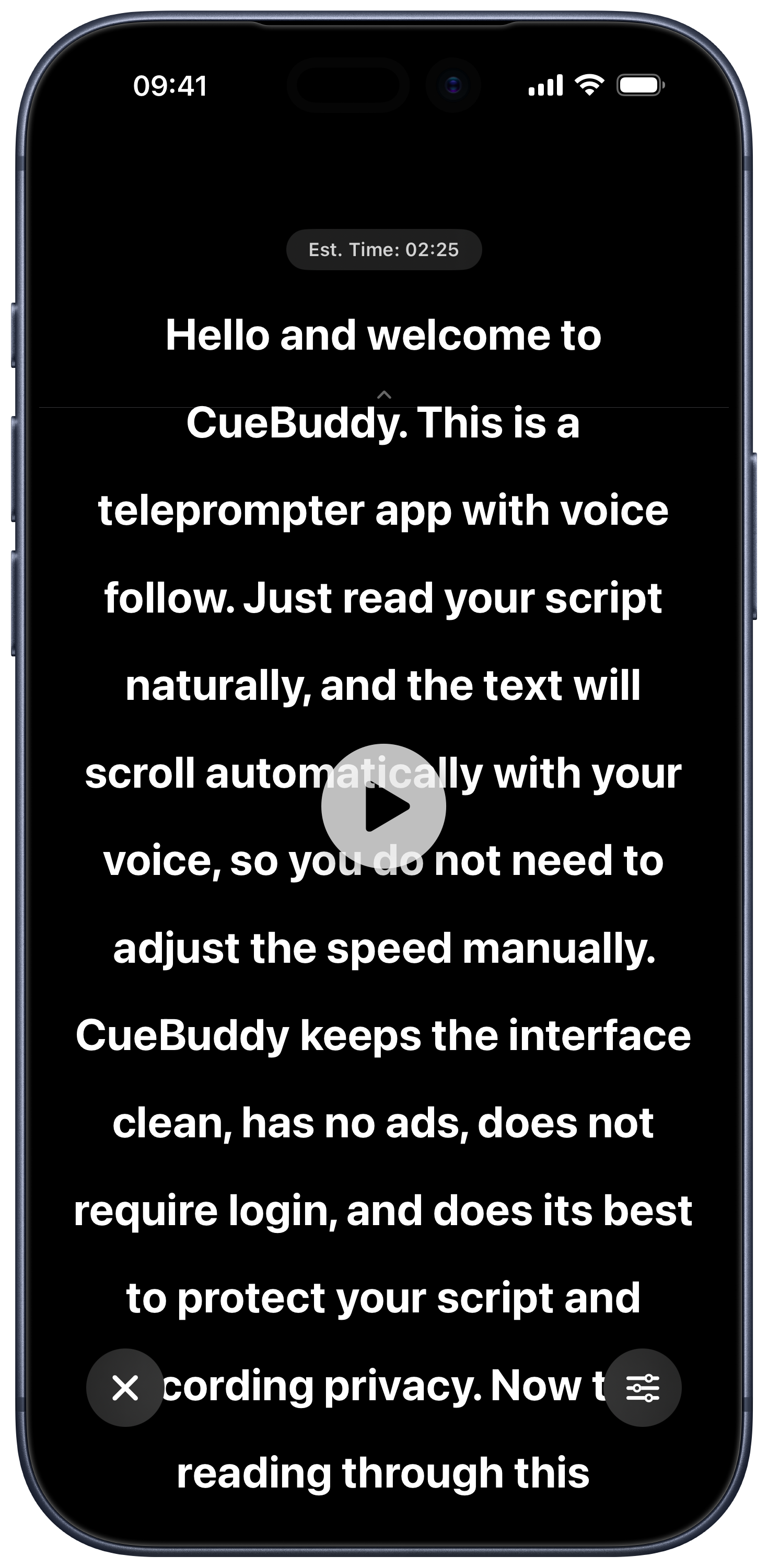
Video Demonstration:
- The physical beam-splitter glass needs to be purchased separately. This app does not provide that device.
Quick Layout Settings
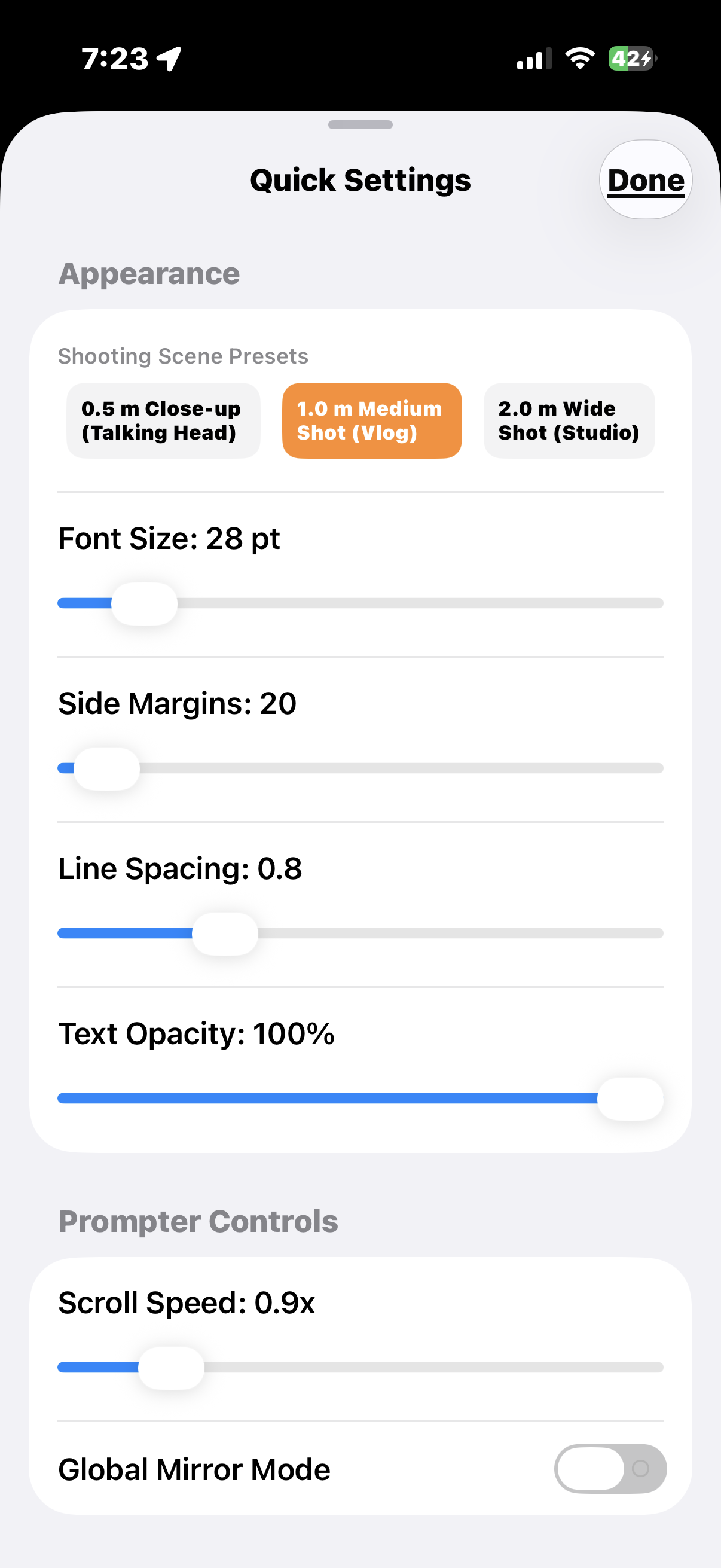
- Three layout presets are provided. You can quickly choose one based on your shooting distance.
- Layout adjustments take effect in real time.
Voice Not Enabled
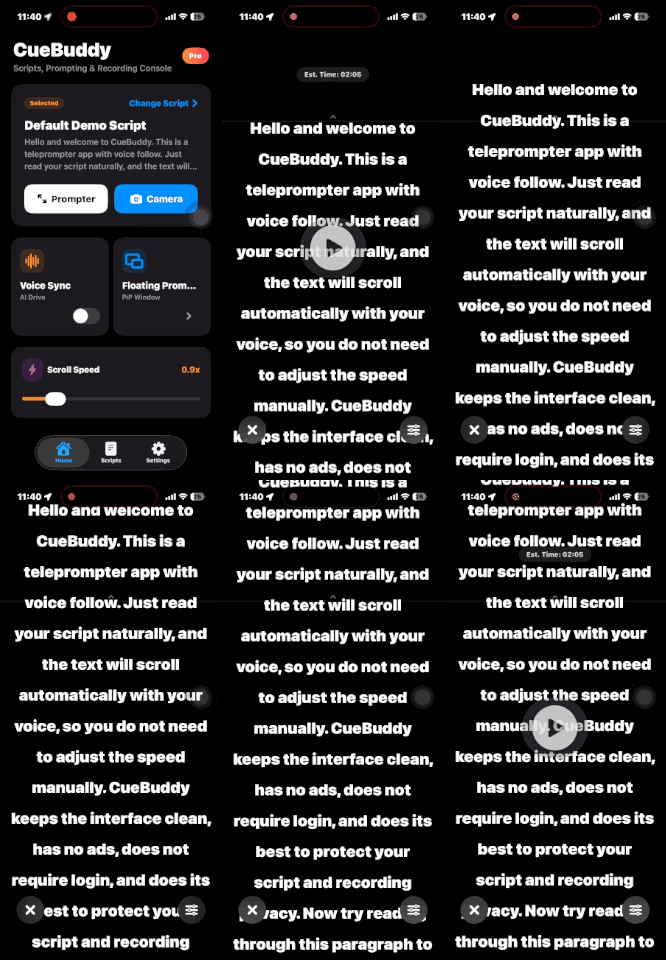
- The script inside the teleprompter scrolls at a constant speed. You can adjust the scrolling speed on the teleprompter home screen and in the quick settings of Full-Screen Teleprompter.
- Swipe up on the screen to quickly adjust the current script position. Tap the on-screen button to pause or continue scrolling.
- The teleprompter supports an external keyboard, Bluetooth device, remote control, and similar accessories for pausing or continuing scrolling.
Voice Follow Enabled
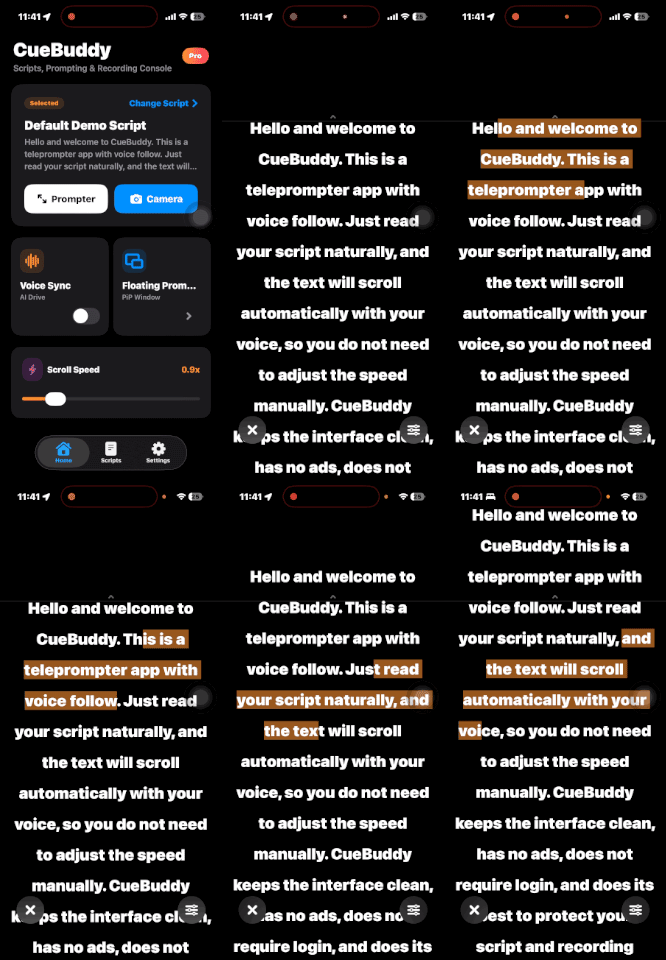
- The script inside the teleprompter dynamically scrolls according to your speaking pace while keeping the text within your optimal line of sight.
- In Settings > Advanced Recording Settings, you can enable or disable the orange highlight display in the teleprompter.