 CueBuddy
 Scan with your phone to download
Web Teleprompter Recording
Learn how CueBuddy web teleprompter recording works with camera permission, browser preview, local video recording, and current browser-side limits.
Teleprompter Recording
After tapping Start Teleprompter Recording, the teleprompter interface switches to a two-column layout, and a video preview window appears on the right.
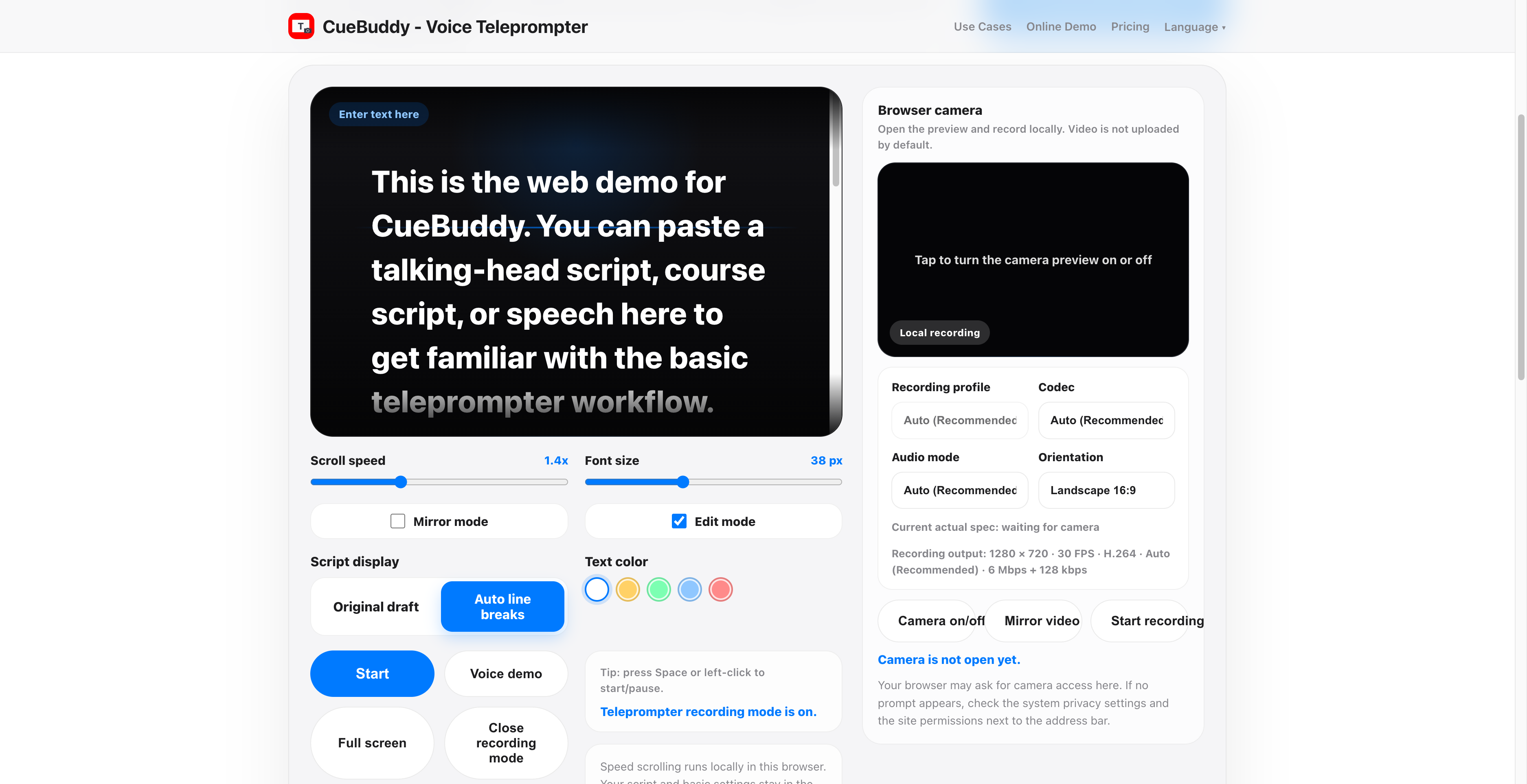
- Tap Turn Camera On/Off and the browser will request camera permission. Please tap Allow. If you accidentally tapped Don’t Allow, manually enable camera permission in your browser settings.
- Current recording capabilities support 720P 30FPS, 1080P 30FPS, mono audio, stereo audio, VP9, H.264, H.265, and more. Actual support varies depending on the browser and device. Please refer to the options you see on your device.
- Teleprompter Recording can be used together with the Try Voice Teleprompting feature.
- After recording ends, the video download appears immediately. Save it properly, because your data is processed entirely in your local browser and does not pass through this platform.