 CueBuddy
 Scan with your phone to download
> A teleprompter is a prompting tool that keeps a script close to the camera. A traditional rig reflects text from a display onto semi-transparent beam-splitter glass while the camera records through the glass. An app or browser teleprompter displays and moves the script directly on a device.
That definition matters because a teleprompter is not always a piece of studio hardware. It can be a beam-splitter rig, a phone or tablet app, or a browser tool. All three reduce the need to memorize a complete script while keeping the next idea visible near the eyeline.
How a beam-splitter teleprompter works
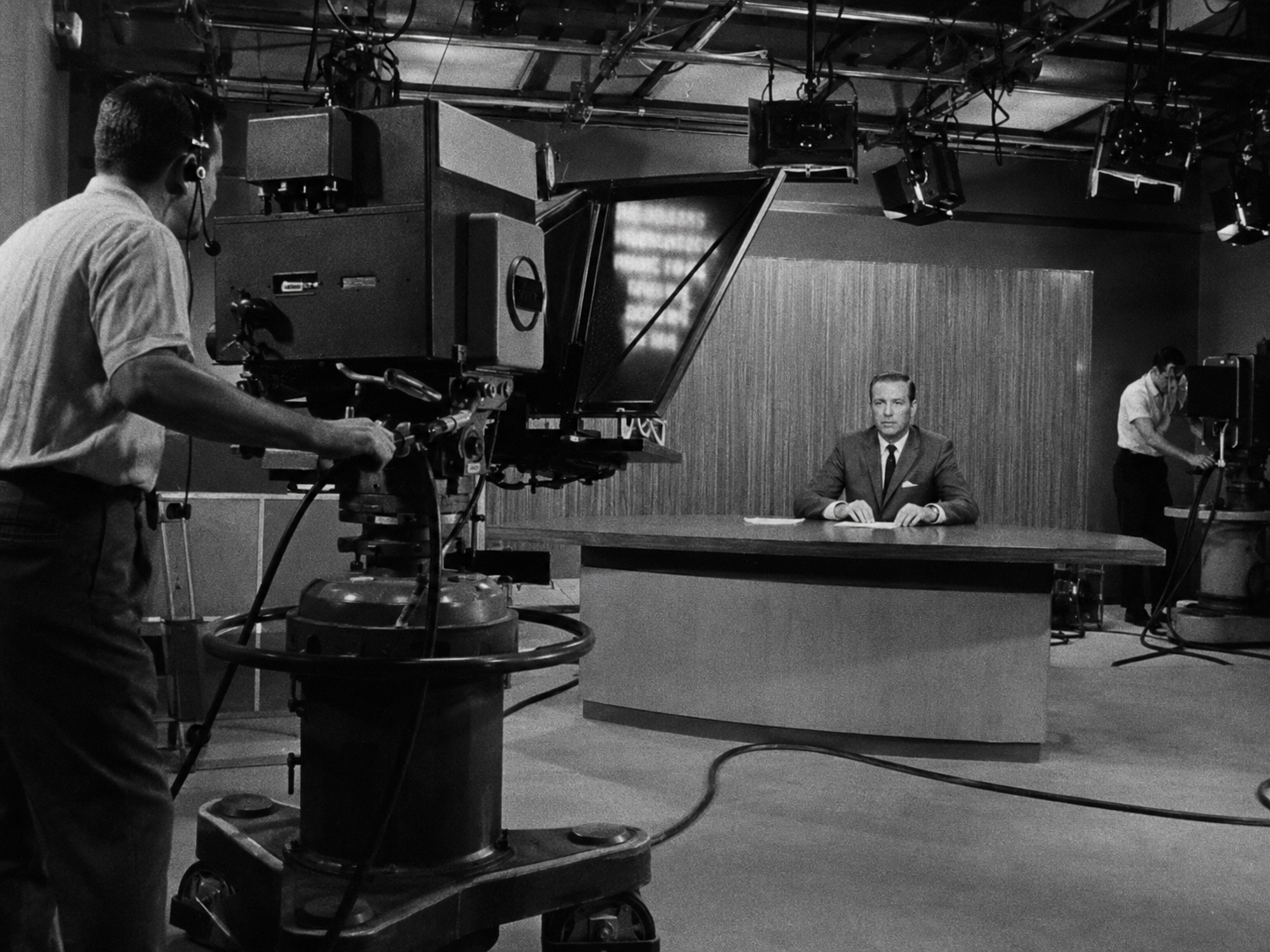
A typical setup places a display below the camera and a semi-transparent beam splitter between the display and the lens. The glass reflects the script toward the presenter while the camera records through it along the optical centerline. Many designs use a nominal angle around 45 degrees, although actual hardware can be adjusted.
The result depends on more than the angle. Hooding, display brightness, glass quality, lens position, and ambient light all affect reflections and readability. A real rig still needs a short camera test.
Why prompting can reduce missed lines
On camera, a speaker manages content order, delivery, expression, eyeline, and equipment at the same time. Working memory is limited, so memorizing a long script adds another demand. A teleprompter externalizes “what comes next,” leaving more attention for delivery.
It does not automatically make delivery natural. Long sentences, small type, and a reading area far from the lens can make eye movement obvious. Short paragraphs, planned pauses, and a 30–90 second test usually matter more than adding more features.
Three teleprompter types compared
| Type | How it works | Best fit | Main limits |
|---|---|---|---|
| Beam-splitter rig | Reflects a display onto semi-transparent glass in front of the lens | Studios, interviews, courses, formal camera setups | Requires hardware, hooding, mirrored text, and setup time |
| Teleprompter app | Displays the script on a phone or tablet; may add recording, full-screen, or voice following | Solo talking videos, lessons, speeches, mobile production | Permissions, performance, and features vary by app and OS |
| Browser teleprompter | Runs in a browser with optional camera and speech features | Quick script tests, desktop recording, meeting practice | Speech, camera, and recording formats vary by browser |
Use a beam splitter when the eyeline must stay closest to a dedicated camera. Use an app for phone-first production. For a quick test, open the free online teleprompter.
Fixed scrolling and voice following
Fixed scrolling advances at a chosen speed. It is predictable and works well for rehearsed delivery. Voice following matches speech-recognition fragments to the script and is useful when the speaker pauses, repeats, or changes pace.
The current CueBuddy iPhone/iPad on-device recognition paths require supported hardware, OS, language and installed resources. Mac capabilities require separate verification. The web version uses the browser speech service, which may process audio online. Test the actual device before an important recording.
When a teleprompter is—and is not—a fit
Teleprompters fit talking videos, lessons, speeches, livestream run-of-show notes, and company videos where key points must not be missed. They do not replace fact checking, rehearsal, or editorial judgment. A tightly time-coded production may still be better with fixed scrolling and manual control.
Before an important take, test the exact device and environment. Check eyeline, permissions, script movement, background noise, available recording format, audio/video sync, and file playback.
Sources and revision note
- Google Patents: US20090256970A1 Teleprompter, describing the display, beam splitter, camera centerline, hood, and nominal angle.
- Apple Developer: Speech audio-buffer recognition request, explaining how live audio is supplied to the Speech framework.
- Apple Developer: supportsOnDeviceRecognition, documenting that offline recognition depends on recognizer support.
Revised 2026-08-11: added a concise definition, comparison table, limitations, and sources; removed unsupported price, fixed-latency, universally offline, and absolute capability claims.
Try the free online teleprompter first
If you are solving script, pacing, line-memory, or filming workflow issues, open the browser teleprompter first and test the script there. Use the CueBuddy app when you need a stronger mobile recording workflow.
Start your next recording with CueBuddy
Try the free teleprompter workflow first, then open CueBuddy if you need stronger recording and camera workflows.