 CueBuddy
 Scan with your phone to download
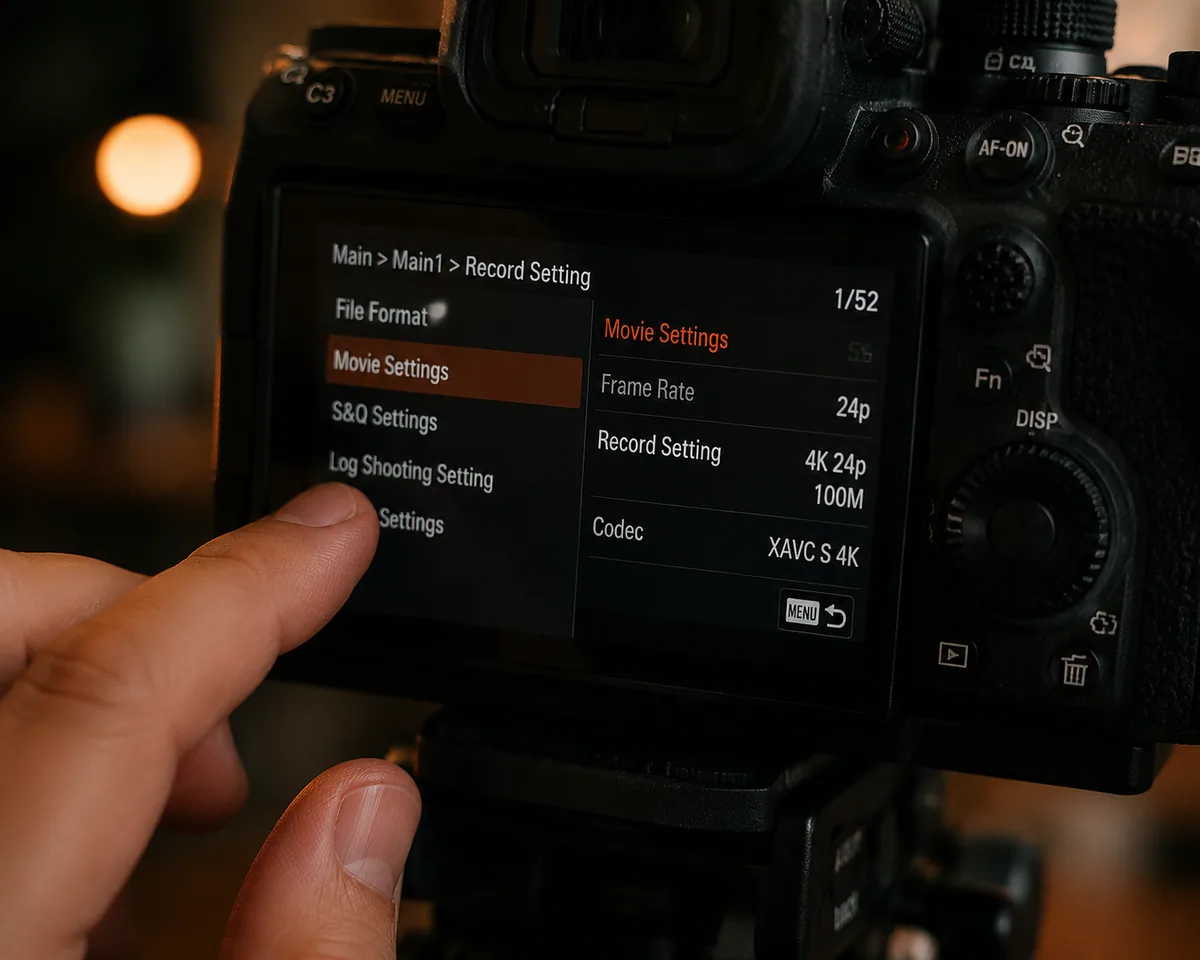
If you shoot video, three numbers follow you everywhere: resolution, frame rate, bitrate. The defaults are the manufacturer's "least likely to mess up" combination — and that's fine. But if you want better image quality, more flexibility in post, or files that don't eat your entire storage, you should know what these three numbers actually do.
Resolution: How Many Pixels Are Recording Your Scene
1080p = 1920 × 1080 pixels. 4K = 3840 × 2160 pixels. Four times the pixels.
Is 4K always better than 1080p? It depends.
If your video lives on phones — viewers scrolling TikTok, Xiaohongshu, or Bilibili — 1080p is plenty. Phone screens are small; at typical viewing distances, the human eye can't distinguish 1080p from 4K.
So why shoot 4K? Two reasons:
Post-production cropping. Shoot 4K, deliver in 1080p, and you've got twice the reframing room. Composition feels loose? Crop in. Want a slow push-in effect without moving the camera? Scale up in post. This freedom is genuinely useful when filming solo with nobody to adjust the frame.
Future-proofing. A 1080p video shot three years ago already looks soft on today's big screens. 4K footage will still hold up years from now.
The cost: file size. 4K files are roughly four times larger than 1080p. On a 128GB phone, 4K adds storage pressure fast.
Practical strategy: daily content, 1080p. When you need cropping flexibility, 4K. When storage is tight, 1080p is perfectly adequate.
Frame Rate: How Many Pictures Per Second
| Frame Rate | Characteristic | Best For |
|---|---|---|
| 24fps | Cinema standard, natural motion blur | Cinematic content |
| 30fps | TV/web standard, slightly smoother | Talking-head, vlogs, reviews |
| 60fps | Very smooth and sharp, can feel like a commercial | Sports, gaming content |
| 120fps+ | Slow motion only | Water, jumps, wind effects |
The most common beginner mistake: assuming higher frame rate is always better and defaulting to 60fps. It's not. 24fps or 30fps is the right choice for most everyday video. Pick the wrong frame rate, and no amount of color grading or lighting can erase that "live TV" feeling.
Another trap: frame rate mismatch with your editing timeline. Shoot 30fps footage and drop it into a 24fps timeline — frames get dropped, it stutters. Shoot 24fps and put it in a 30fps timeline — frames get duplicated, it feels jerky. Decide your delivery frame rate before you shoot, and keep everything consistent.
Bitrate: How Much Data Per Second Describes Your Image
This is the most important of the three — and the most overlooked.
Bitrate determines the "texture" of your image. Low bitrate: clean areas like skies or walls get blocky and banded. Motion turns to mush. High bitrate: details hold together. The image feels solid.
Phones usually auto-select bitrate based on resolution. Cameras and export software let you adjust it.
Reference values:
- 1080p daily content: 15-25 Mbps
- 1080p archival quality: 30-50 Mbps
- 4K daily content: 45-60 Mbps
- 4K archival quality: 100 Mbps+
Past a certain threshold, adding more bitrate makes no visible difference — it just inflates file size. Don't blindly max it out.
Watch out for: compression during file transfer. Shoot high-bitrate footage, then send it via WeChat — WeChat butchers the bitrate to a tenth of the original. Use cloud storage, AirDrop, or a cable for file transfers.
Putting the Three Together
| Scenario | Resolution | Frame Rate | Bitrate |
|---|---|---|---|
| Daily talking-head / educational | 1080p | 30fps | 15-20 Mbps |
| Vlog / lifestyle | 4K | 30fps | 45 Mbps |
| Going for cinematic | 4K | 24fps | 60 Mbps+ |
| Slow motion / action | 1080p | 120fps | Auto |
| Phone default | 1080p | 30fps | Medium |
Your phone's default (likely 1080p + 30fps + medium bitrate) is the "safest" combo the manufacturer picked. If you're not sure what to change yet, sticking with default is absolutely fine. When you start feeling the limits of the default, come back and tweak from there.
Try the free online teleprompter first
If you are solving script, pacing, line-memory, or filming workflow issues, open the browser teleprompter first and test the script there. Use the CueBuddy app when you need a stronger mobile recording workflow.
Start your next recording with CueBuddy
Try the free teleprompter workflow first, then open CueBuddy if you need stronger recording and camera workflows.