 CueBuddy
 Scan with your phone to download
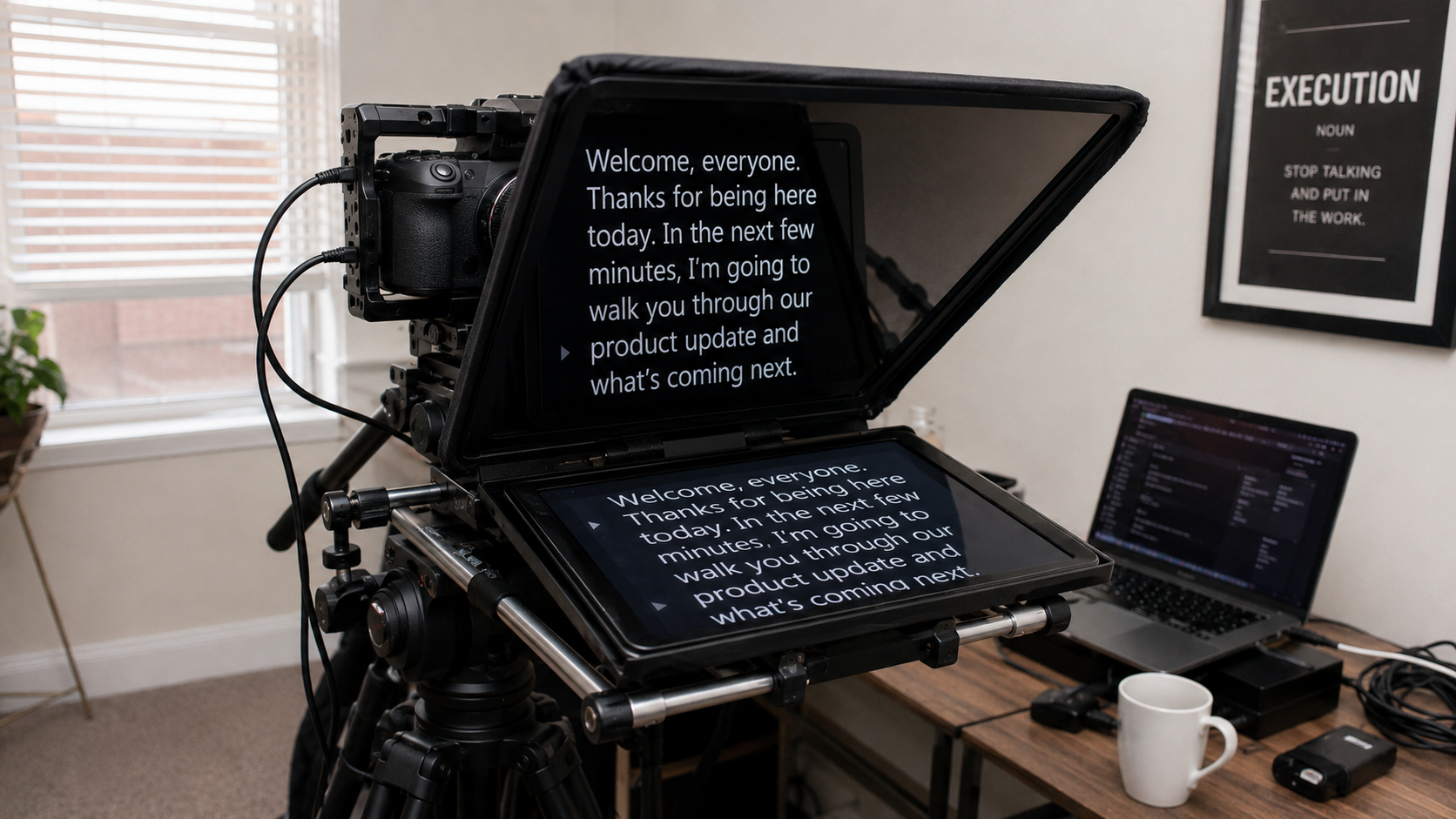
If you're new to teleprompters, you probably have three questions:
1. How do I set this thing up? 2. How fast should the text scroll? 3. Why do I still sound unnatural even when reading the words?
This article walks through one complete video workflow, from downloading the app to exporting your first finished clip. Every step, explained.
Step 1: Pick Your Tools
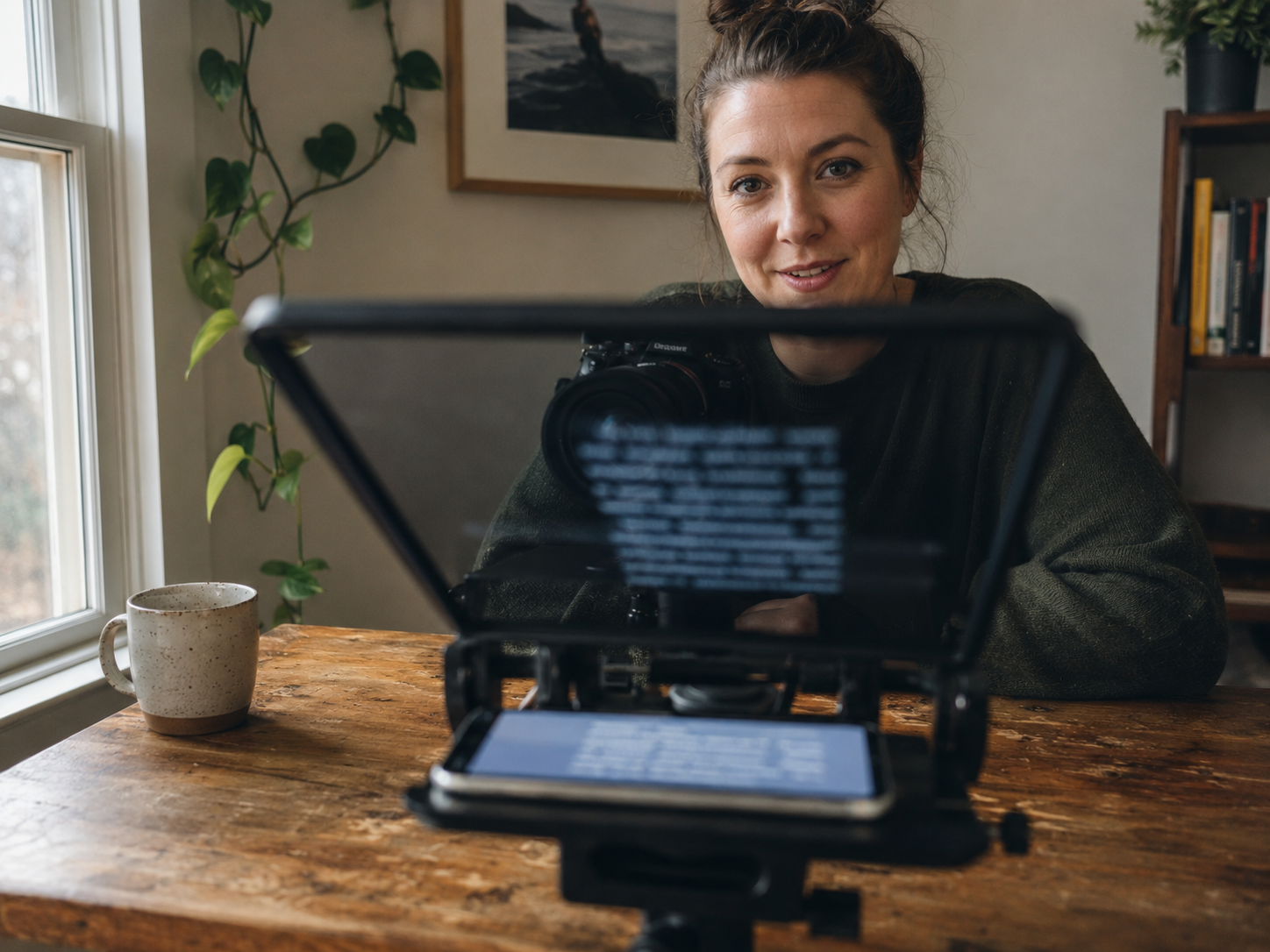
For a basic setup, a phone and a stable mount or tripod can be enough. Choose a stand that safely reaches your intended eye line and supports the weight of the device.
For software, search the marketplace for your device. Filter by these criteria:
- Supports simultaneous prompting and recording. Apps that only prompt force you to use the system camera separately. Switching back and forth is inefficient.
- Support for your script language. Test line breaking, punctuation, font fallback, and speech recognition if you plan to use it.
- No ads, no pop-ups. A banner ad appearing mid-recording destroys the experience.
This tutorial uses CueBuddy as the example, but the operating logic is similar across most apps.
Step 2: Prepare Your Script
Don't write your script directly in the app. Draft it wherever you normally write — Notes, Feishu, Notion — then paste it in.
Script formatting matters (covered in depth in another article), but three rules will improve things immediately:
1. Short sentences. Use line lengths that remain easy to scan at your actual font size and recording distance. 2. Blank lines at natural pauses. Put an empty line between every couple of sentences. When the text scrolls to a blank line, you'll naturally micro-pause. Sounds more human. 3. Mark your emphasis points. Tricky words, must-stress points — wrap them in brackets or 【】so your eyes catch them instantly while recording.
Once your script is ready, select all, copy, open the teleprompter app, and paste.
Step 3: Dial In the Settings
This is the most important step. Also the most commonly skipped. Many people paste their script and hit record immediately. Two takes later, everything feels off.
Four parameters to adjust:
Scroll Speed
Speed may be shown in words per minute, characters per minute, or an app-specific scale. For Chinese, 180–250 characters per minute can be a starting test range, not a universal target.
How to find your speed? Record yourself talking normally for 60 seconds about anything, then count the characters. If you spoke 210 characters in 60 seconds, your speed is 210. Plug that number into the app.
Font Size
Sit at your actual recording position. Hold your phone at your actual recording distance. Look at the text on screen. Adjust until you can read it comfortably without squinting — but not so large that only two lines fit.
Text too small → you squint → your expression tightens. Text too big → only two lines visible → scrolling feels frantic.
Text Color and Background
Start with a high-contrast combination such as white on black or black on white. Avoid backgrounds that make the text harder to distinguish, then test the result at the intended distance.
Starting Position
Some apps let you adjust where the prompter text sits on screen. The front camera is usually near the top, so keeping text toward the top looks more natural — your gaze angle for reading and for the lens will be nearly identical, minimizing visible eye shift.
Step 4: Set Up Your Gear
Extend the tripod. Adjust height so the lens is at eye level — whether sitting or standing. Don't angle down or up. Eye level feels right.
Mount your phone. Open the front camera. Check three things:
- Is the background clean? (No laundry hanging in the distance, no random clutter?)
- Is your face lit? (Face a window, or use a ring light positioned slightly above and in front of you.)
- Is your framing right? (Leave a bit of headroom. Don't cram yourself to the top edge.)
Step 5: Test Record
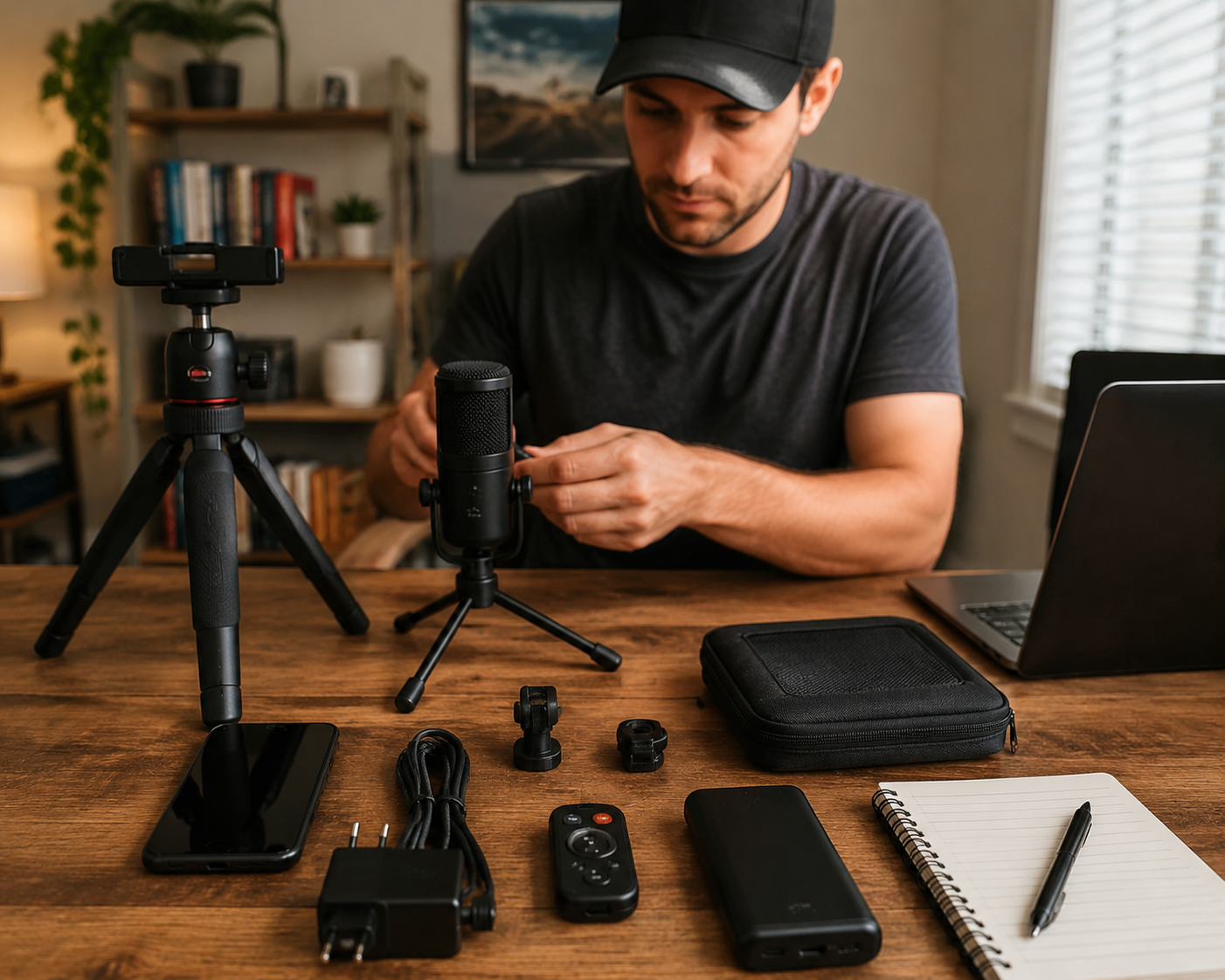
Don't jump straight into the real take. Shoot a 15–20 second test. Check:
- Audio. Play it back. Any popping? Ambient noise overpowering your voice? Move closer to the mic or use an external one.
- Eye line. Are you looking at the lens or at the text? If your eyeballs are noticeably scanning left and right, the prompter window is too far off center. Adjust it.
- Scroll speed. Can you keep up comfortably? Too fast: drop 10%. Too slow: add 10%.
Do the test twice at most. "Close enough" is the target.
Step 6: Record for Real
Deep breath. Hit record.
Tip one: Don't stare at the prompter. Your gaze should naturally alternate between lens and text. Glance at the first few words of a sentence, deliver the sentence to the lens, glance back for the next one. This rhythm takes about two tries to get.
Tip two: Let yourself make mistakes. Stumble on a word? Keep going. Editing out one second of flub takes nothing. The more you chase perfection, the more tense your face gets.
Tip three: Wait two seconds before stopping. Many people finish their last line and immediately lunge for the stop button, leaving a weird arm-reaching moment at the end. Finish your sentence, hold your smile and eye contact, count "one, two" in your head, then stop.
Step 7: Review and Re-record
Watch the whole thing back. Ask yourself:
- Would I actually want to finish watching this?
- Is there any part where it sounds like I'm reading instead of talking?
- Are there obvious problems with the visuals or audio?
If the overall feel is good but there are one or two rough spots, re-record just those sentences. Don't redo the whole thing. If the overall feel is off, tweak your settings and do a full retake. The second take is almost always better — you know the material now.
Step 8: Export and Publish
Export the video to your camera roll. Use whatever editing app you like (CapCut, Jianying, etc.) for light post-production: add captions, trim dead air, tweak brightness, add a cover image.
Don't overdo the effects. 90% of your content's value is in what you're saying and who you are. Effects are garnish, not the meal.
Common Questions
Q: Will the prompter text appear in my final video like a watermark?
In CueBuddy's camera-recording workflow, the prompt is an interface overlay and is not intended to be composited into the exported camera video. Record a short test on the actual device before an important take; system screen recording is a different workflow and can capture the interface.
Q: Why is my recorded audio out of sync with the video?
Sync problems can have several causes, including device load, thermal state, codec behavior, or the editing pipeline. Test a short clip, close unnecessary apps, confirm the original file before editing, and use recording options supported by the current device.
Q: Voice following or fixed scroll speed — which one?
If your speaking pace varies — you pause to think or speed up when excited — try voice following. CueBuddy uses Apple's Speech framework, and recognition or network availability varies by device, language, and system. If your pace is steady or you need precise timing, fixed scroll speed may be the better fit.
Once you get comfortable with a teleprompter, you'll realize it's basically an external brain — it remembers the words so you can focus on delivering them. The first few tries might take some adjustment. That's normal.
Try the free online teleprompter first
If you are solving script, pacing, line-memory, or filming workflow issues, open the browser teleprompter first and test the script there. Use the CueBuddy app when you need a stronger mobile recording workflow.
Start your next recording with CueBuddy
Try the free teleprompter workflow first, then open CueBuddy if you need stronger recording and camera workflows.