 CueBuddy
 Scan with your phone to download
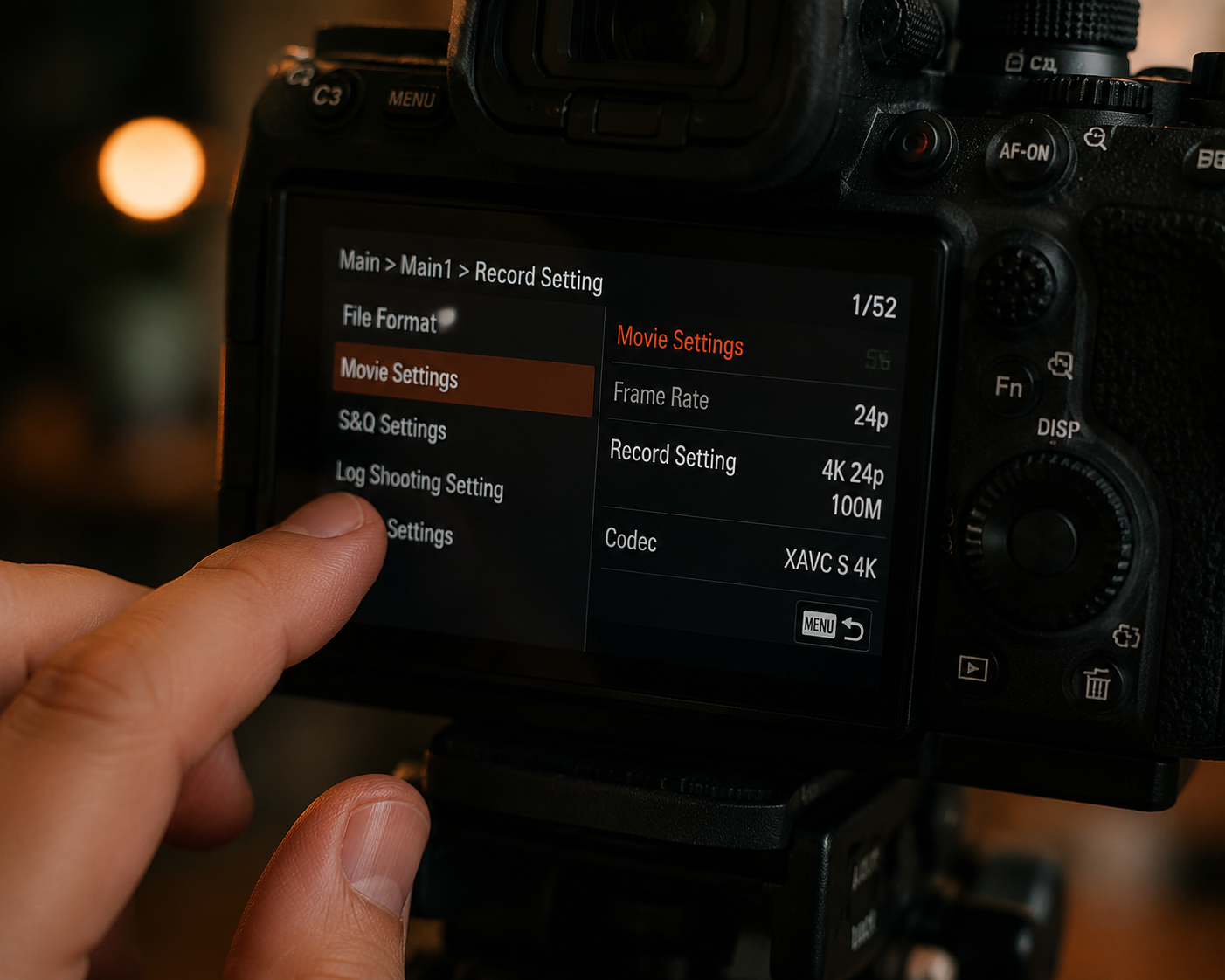
Video quality isn't just about gear. Gear is one link in the chain — and not necessarily the decisive one. The difference between cinematic iPhone 12 footage and security-camera Sony A7M4 footage comes down to whether the entire pipeline was considered.
Stage 1: Light In. Everything Follows.
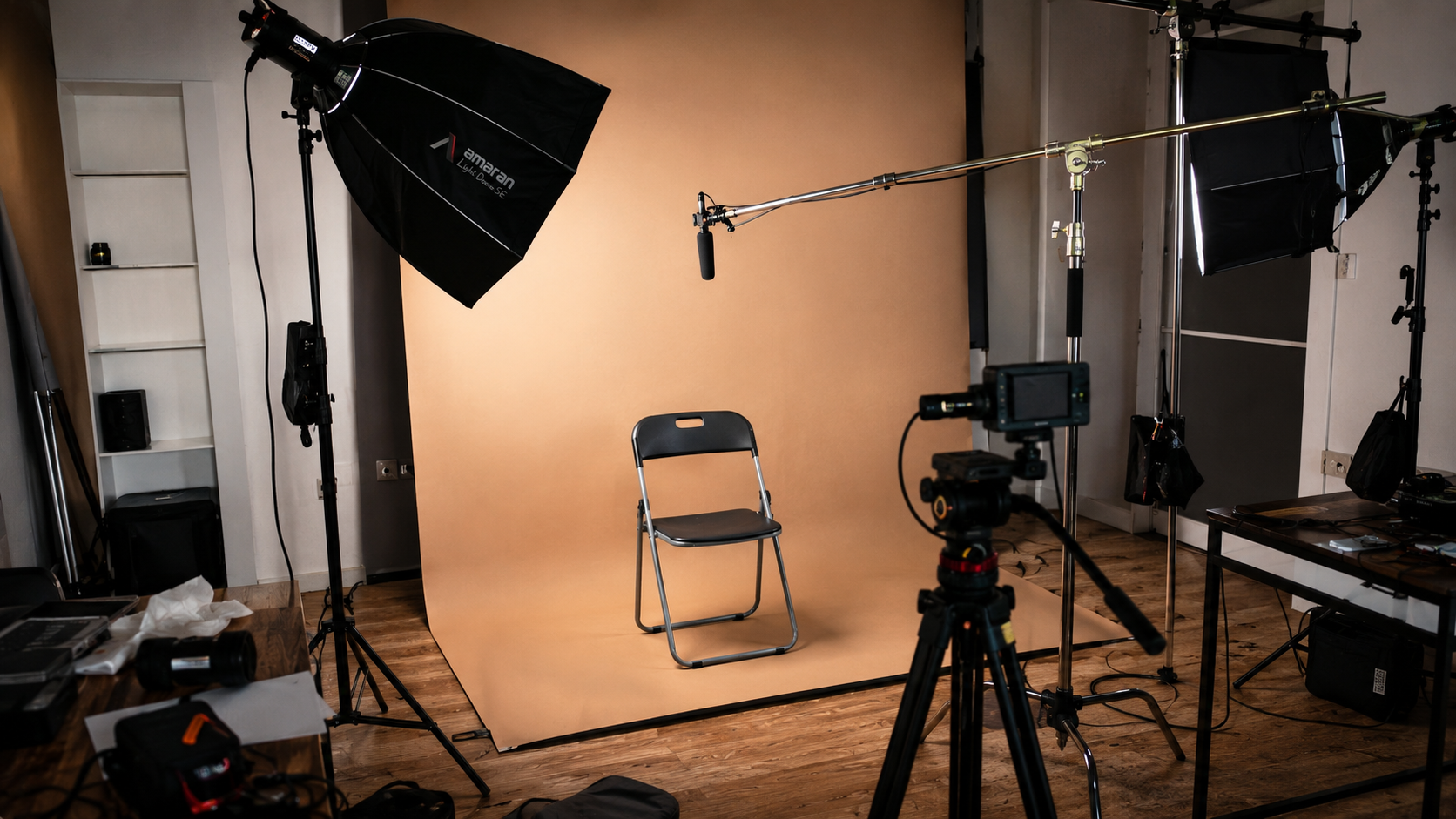
Image quality starts with light, regardless of device. Not enough light, the sensor cranks ISO, noise creeps in — subtle on a phone screen, obvious on a larger display.
For indoor filming, a key light does more than any lens upgrade. A 100W LED panel costs well under a hundred dollars with immediately visible improvement.
Natural light principle: front light is safest, side light gives the most dimension, back light needs fill. Beginners: start with side light at 45° to your face. Gets depth and texture without extra gear.
Stage 2: Lens Cleanliness
Hazy, washed-out footage? First: wipe the lens.
Phones spend all day in pockets — fingerprints, oil, lint accumulate. Clean with a microfiber cloth (or shirt in a pinch) before every shoot. The clarity jump is real. Most video creators haven't built this habit.
Stage 3: The Three Parameters — Resolution, Frame Rate, Bitrate
Resolution: 1080p is enough. 4K is better but not mandatory. Most viewers watch on phones — the gap between 1080p and 4K isn't visible at that size. But 4K's advantage: you can crop in post and still output 1080p. It's a free digital zoom.
Frame rate: 24fps or 30fps for everyday content. 60fps or 120fps only for slow-motion. High frame rates change motion feel — you lose the subtle cinematic blur and footage starts looking like a phone commercial.
Bitrate: the most important and most overlooked. Bitrate is how much data is recorded per second. Same 1080p: higher bitrate preserves detail, lower bitrate produces blocky artifacts when anything moves. On phones, dig into camera settings and pick the higher-bitrate option. On cameras, don't be stingy with storage — set bitrate high.
Stage 4: Stabilization
Shakiness is a silent quality killer — shaking wrecks the compression algorithm. Video encoding relies on inter-frame compression: similar frames save space by only recording differences. If footage bounces, every frame differs from the last. The encoder spends its bitrate budget on motion, starving static areas. Detail suffers — even when shake isn't noticeable.
Solutions, ascending: two hands, elbows tucked into ribs (stability improves instantly). Phone gimbal (under a hundred dollars). Post-production stabilization (works, but crops into your frame — shoot wider to compensate).
Stage 5: Export Settings
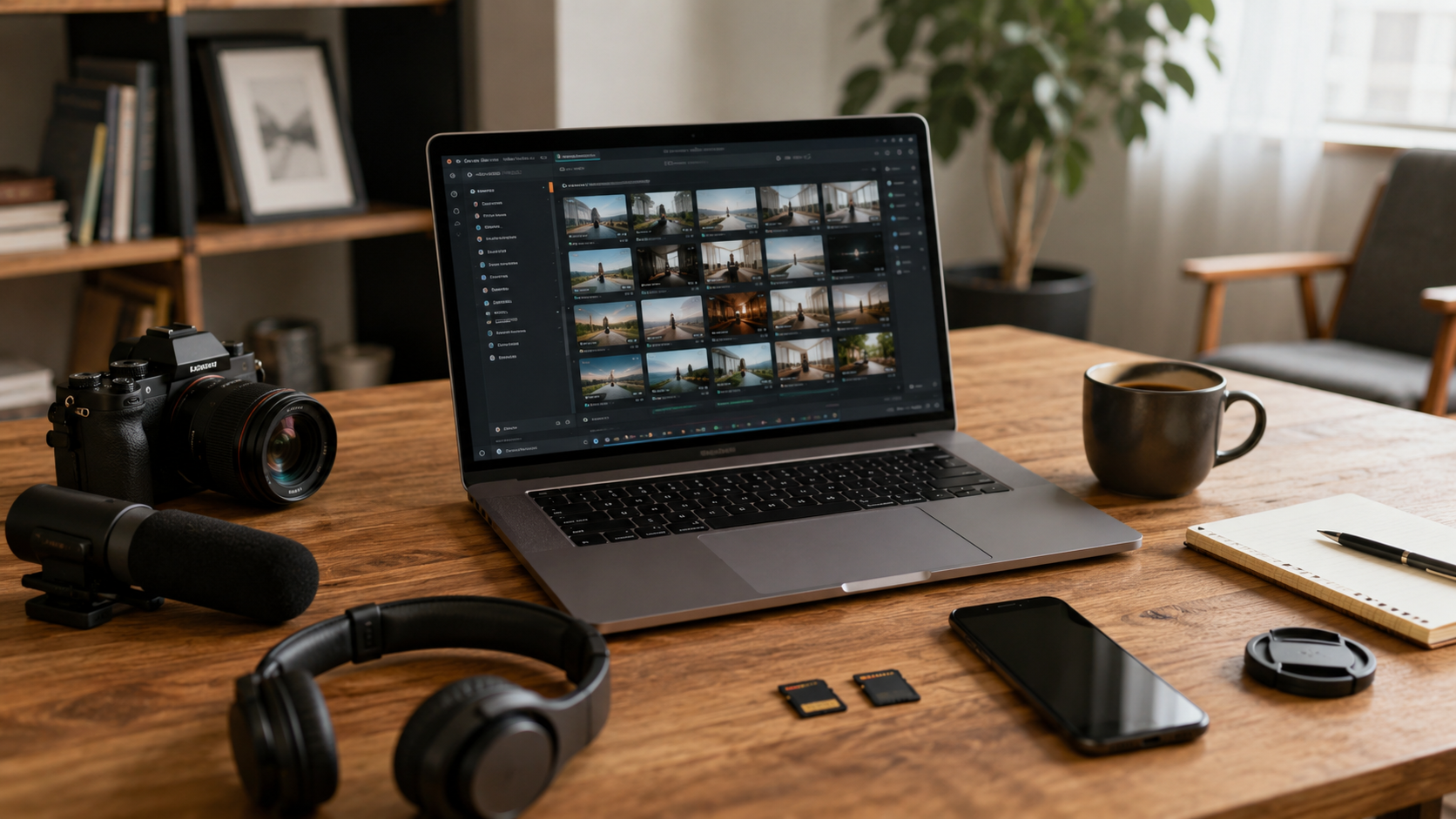
The most common trap: editing software defaults to conservative bitrates to keep files small. All that carefully preserved detail gets crushed at export.
For 1080p output: at least 15 Mbps. For 4K: at least 45 Mbps. Uploading to platforms that apply their own compression? Add 20% as a buffer.
Also: when exporting, select "best quality" — not "fastest encode." The minutes saved aren't worth the quality lost.
The Full Pipeline
Light source → clean lens → parameter settings (resolution + frame rate + bitrate) → stabilization → export.
A small dip at any stage is manageable. A catastrophic failure at one stage is what kills you. If footage doesn't look right, walk the chain and find the weakest link. Most often, the problem is in the first two stages — light and lens.
Don't rush to upgrade gear. Get the light right. Wipe the lens. Set bitrate properly. Your current setup may be far more capable than you assume.
Try the free online teleprompter first
If you are solving script, pacing, line-memory, or filming workflow issues, open the browser teleprompter first and test the script there. Use the CueBuddy app when you need a stronger mobile recording workflow.
Start your next recording with CueBuddy
Try the free teleprompter workflow first, then open CueBuddy if you need stronger recording and camera workflows.